Activation and licence
Activate the purchased product, check its status and move the licence to another computer.
Activate on this computer
- At the opening screen, paste your purchased key into Activate License.
- Select Open and wait for Checking… to finish. If activation is refused, check the internet connection and the key, then try again (see Errors and troubleshooting).
- If the installation is already activated, the opening screen says Activated on this machine. Select Open.
Read licence status
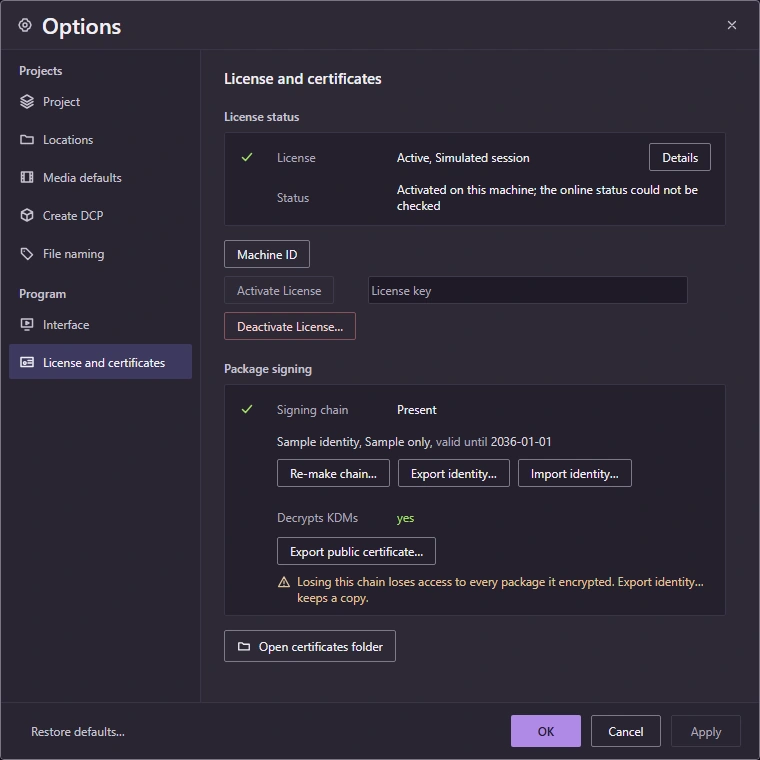
Open File → Options… → License and certificates. You can enter a License key and choose Activate License here too. Read Status, License type and Activated on. Use Details when a request fails.
Studio and plugin activations are separate. Internet is needed to activate, deactivate and start a licensed export. An export already started can finish if the connection drops. Every export still checks the licence online when it starts.
Move to another computer
- On the old computer, open License and certificates and choose Deactivate License….
- Read the confirmation and select Deactivate. Wait for success while connected to the internet.
- Install and activate the same product on the new computer. If the old computer is inaccessible, contact support through the site.