Subtitles
Set subtitle language, appearance and timing, then review the result.
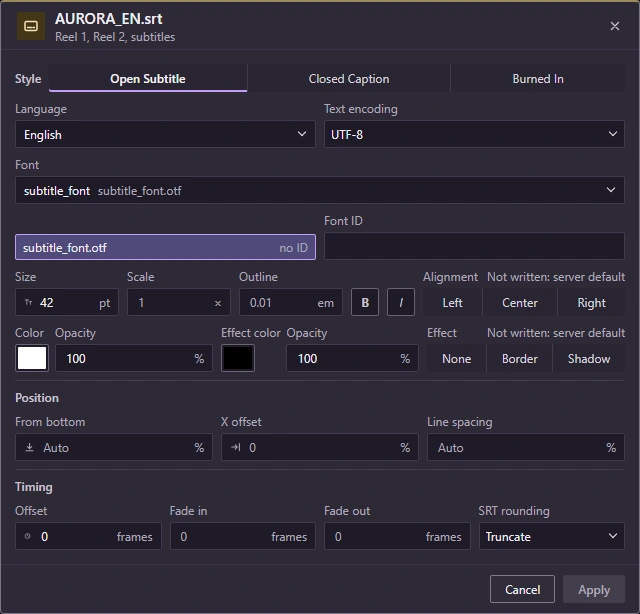
Add and identify the subtitles
- Use Add subtitles… or Import media.
- Open Settings… and choose Language.
- For SRT, check Text encoding when accented characters look wrong or the file is not UTF-8.
- Choose Font → Add font… and supply the required font file. Apply the settings.
Set the appearance
For SRT, review Size, bold/italic, Alignment, Color, Opacity, Effect and Effect color. In Position, From bottom sets vertical placement and X offset shifts the text horizontally. Check readability on the picture.
Imported Timed Text XML or MXF subtitles carry their own styling. The SRT appearance controls may not apply to them. Check which fields the settings show for that file.
Review timing and characters
In Timing, Offset shifts subtitle timing in frames. Where shown, SRT rounding chooses Truncate, Nearest or Up when times are placed on frame boundaries.
- Choose Apply and review the first and last subtitle and the joins between reels.
- Run Checks. Resolve missing fonts or characters, and examine overlapping captions using the row action.
- Use the preview subtitle visibility control to compare with the picture. Hiding subtitles in the viewer does not remove them from the package.
Export subtitles separately
- With subtitles assigned to reels, choose Media → Export subtitles… for SMPTE MXF, or Export subtitles as Interop XML… for Interop XML.
- Choose an empty destination folder and read the result. This writes standalone subtitles, not a DCP or SRT.
- If the message says styling was not carried, read the Log. The project keeps the list of styling that the last export could not carry, and the Log shows it again when you reopen the project. Save the project after exporting to keep that list.