Tools for existing DCPs
Add packages, combine compositions and convert adopted tracks.
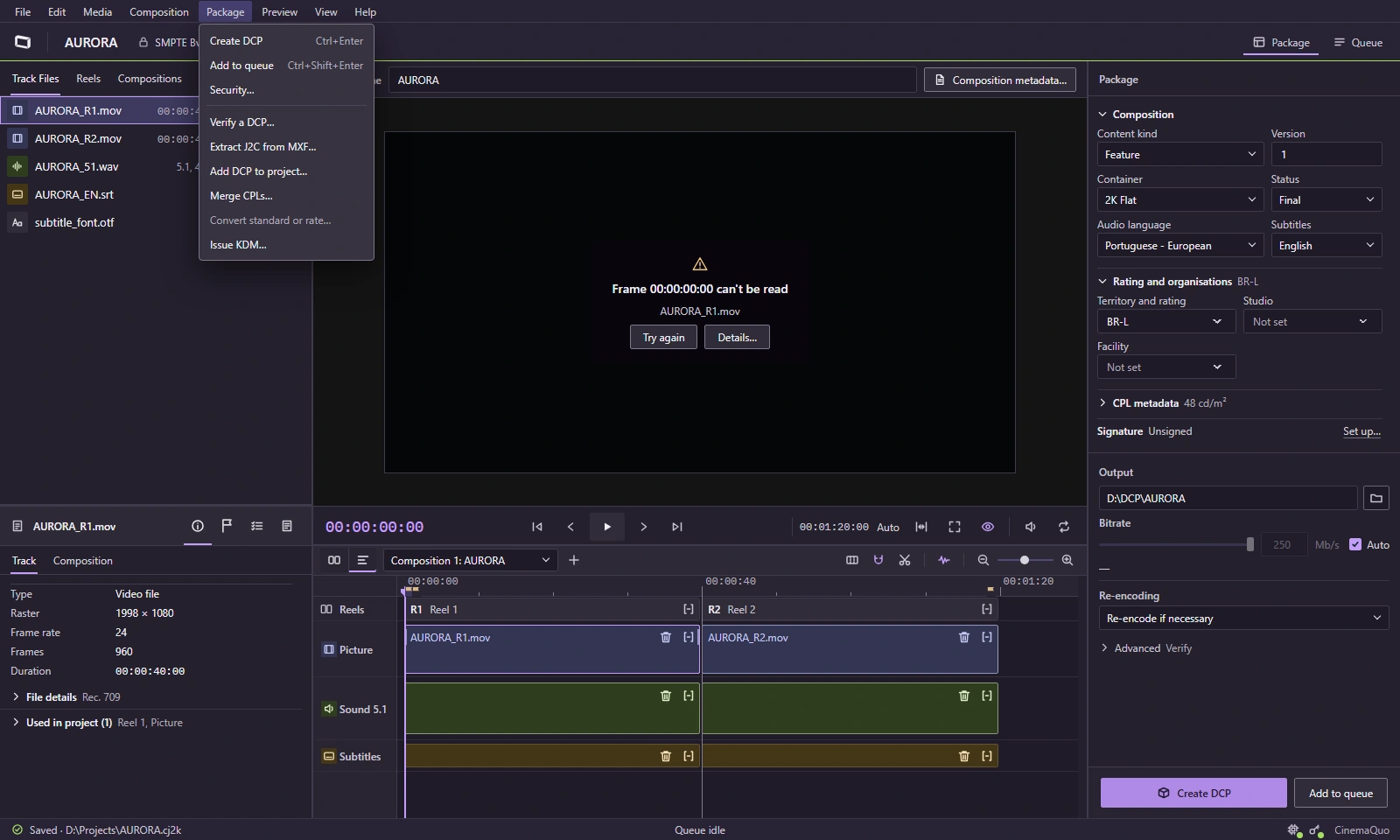
Add a package to this project
- Open the editable project that will receive the package.
- Choose Package → Add DCP to project…. Select the other package’s ASSETMAP or a CPL.
- Review the added items in Compositions and Reels. Selecting a CPL identifies the package folder; all compositions read from that package are added.
- Save, review Checks and create a new DCP when ready. Adding a package alone does not write a new output.
Combine compositions
- Choose Package → Merge CPLs….
- Use Add package… and select an ASSETMAP or CPL. Repeat for other packages.
- Read Joined by UUID. UUID is the identifier used to recognise a track; identical identifiers and checksums allow the same file to be shared. Conflicting content still needs review.
- Set Package title if needed, then choose Close. This is the package title, not a replacement for each composition’s name.
- Check the compositions and create the new DCP through the normal export flow.
Check what was added
Convert adopted DCP tracks
- Use Open DCP as project… and ensure a picture or sound track from the package is used in a reel.
- Choose Package → Convert standard or rate….
- Select Standard and an offered Edit rate, then Apply. Only the offered conversions are available.
- Read Checks, especially any duration change or track rewrite. Choose a new destination and Create DCP.
- Play and verify the new package. Applying the dialog changes the project; it does not immediately convert the original package.
Extract J2C from a picture MXF
- Choose Package → Extract J2C from MXF….
- Select an unencrypted picture MXF, then an empty output folder.
- Read the completion or refusal message. The output is the JPEG 2000 picture stored in that track, not a complete DCP, sound or subtitles.