Reels and the timeline
Place tracks, adjust In and Out, and divide the programme.
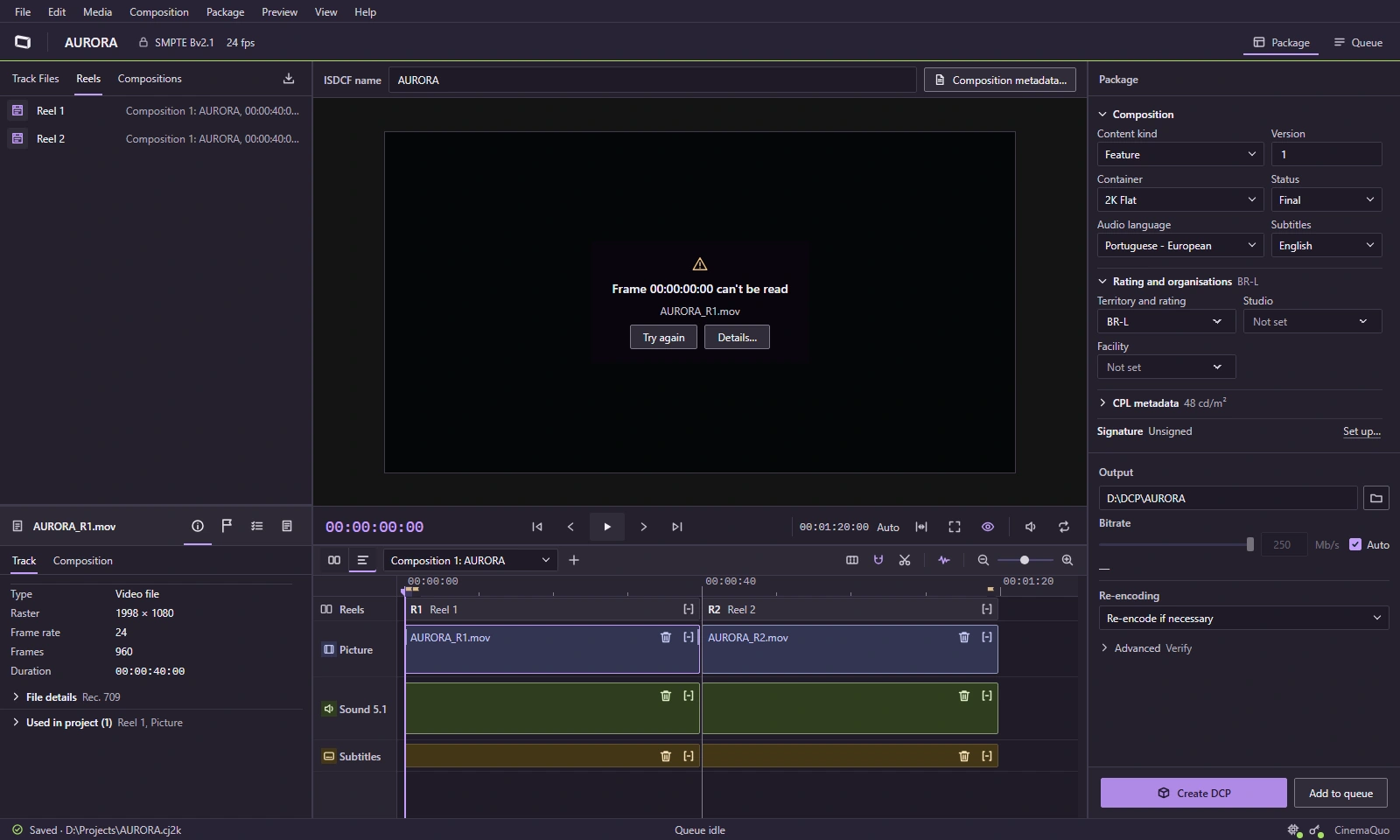
Place the programme
- In Track Files, choose a source’s Insert into composition… or drag it to the timeline.
- Set Place and choose Insert. Check the receiving composition and reel.
- The left Reels tab selects reels. The lower Timeline / Reels controls show the same programme in different ways.
- Check each reel’s picture, sound and subtitles, especially joins and empty assignments.
Set In and Out
- Open the reel or track’s In / Out control.
- Set In to the first frame you want. Out (exclusive) is the first frame after the section; that frame is not included.
- Read the duration. Review Same length as the other tracks of this reel if offered, then apply.
- Inspect the boundary in the viewer. The I and O shortcuts open the same adjustment at the playhead.
Split a reel
Place the playhead at the cut and choose Split reel at playhead (Ctrl+K). For a size-based split, use Split by size…, enter the requested maximum and review the result. Recheck joins and run Checks after changing the montage.
Use Compositions for programme versions and Markers for positions such as credits.