Picture and framing
Choose the output frame, source colour and framing.
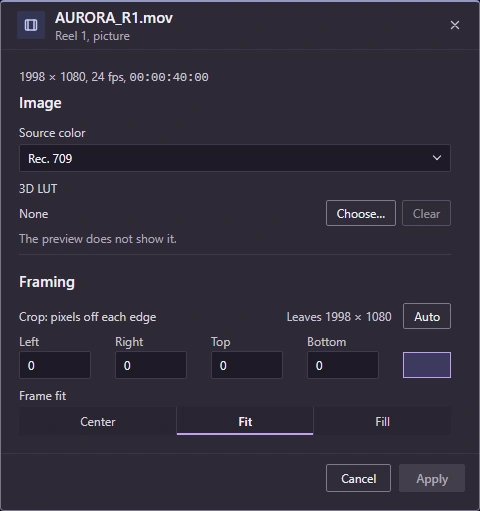
Choose the output frame
In Package, Container selects the output frame. Flat is the 1.85:1 cinema frame; Scope is the wider frame, approximately 2.39:1. Full uses the whole frame. Confirm the format requested by the cinema before adjusting the image.
| Frame | 2K | 4K |
|---|---|---|
| Flat | 1998 × 1080 | 3996 × 2160 |
| Scope | 2048 × 858 | 4096 × 1716 |
| Full | 2048 × 1080 | 4096 × 2160 |
Identify the source colour
- Open the picture’s Settings…. Under Image, set Source color to match the source master.
- Choose the matching space, such as Rec. 709, DCI-P3, P3 D65 or Rec. 2020. Confirm this with the person supplying the master.
- Use Custom… only with known primaries, white point and Curve. Load preset… loads a prepared colour preset.
- Choose Apply. Cinema output uses X′Y′Z′, a colour representation used for digital cinema.
Fit or crop the picture
In Framing, Crop: pixels off each edge removes whole source pixels from the edges. Check the remaining picture size and look at the shot.
| Frame fit | Result |
|---|---|
| Center | Keeps the source scale; unused area is black. |
| Fit | Fits the whole picture inside the frame; black borders may remain. |
| Fill | Fills the frame and cuts picture extending beyond its edges. |
Choose Apply. When J2C picture is reused as it is, it cannot be resized; the framing controls are locked.
Bitrate and reuse
Bitrate sets the picture data rate in Mb/s. Leave Auto on for the automatic choice or turn it off to set a value. Bitrate / from J2C means prepared picture supplies its own rate.
Under Re-encoding, Re-encode if necessary reuses J2C picture as it is when it can, and encodes again only when needed. Force re-encoding requests a new encode; Force no re-encoding requires reuse. Read the checks before export.