Preferences
Set defaults, folders, autosave and the interface.
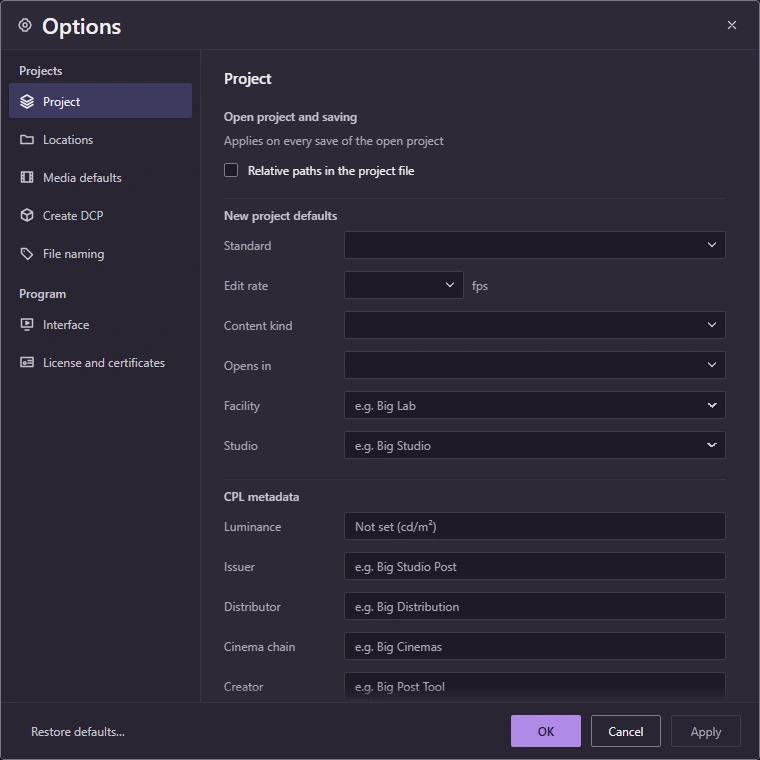
Open Options
Choose File → Options… or Ctrl+,. Select a section on the left. Apply saves changes while keeping the window open; OK accepts and closes; Cancel leaves unaccepted edits.
| Section | What to review |
|---|---|
| Project | Relative paths and defaults for future projects. |
| Locations | Project, output, autosave and job-log folders. |
| Media defaults | Starting choices for future imports. |
| Create DCP | Defaults for new projects’ package and check choices. |
| File naming | Naming preset, pattern and example. |
| Interface | Theme, single-key shortcuts and full-screen monitor. |
| License and certificates | Activation, signing chain and identity backups. |
Understand when defaults apply
Media defaults apply to future imports. New-project defaults apply to new projects. To change material already in the current project, open its settings there.
Relative paths in the project file applies when saving the open project. Relative paths help keep references together, but do not copy the sources. In Autosave, review Save every and the folder. Use Open autosaved project… to recover a saved copy.